You haven't signed in yet, you can have a better experience after signing in
*Please complete the payment within {{receiveCouponInfo.expire_at}}Previous use*
You haven't signed in yet, you can have a better experience after signing in




Activity Rules
1、Activity time:{{ info.groupon.start_at }} ~ {{ info.groupon.end_at }}。
1、Activity time:cease when sold out。
2、Validity period of the Group Buying:{{ info.groupon.expire_days * 24 }} hours。
3、Number of Group Buying:{{ info.groupon.need_count }}x。
Please Pay Attention
1、Teamwork process: Join/initiate a Group Buying and make a successful payment - Within the validity period, the number of team members meets the activity requirements - Group Buying succeeded!
2、If the number of participants cannot be met within the valid period, the group will fail, and the paid amount will be refunded in the original way.
3、The number of people required and the time of the event may vary among different products. Please pay attention to the rules of the event.

Flexible, Simple, Fast
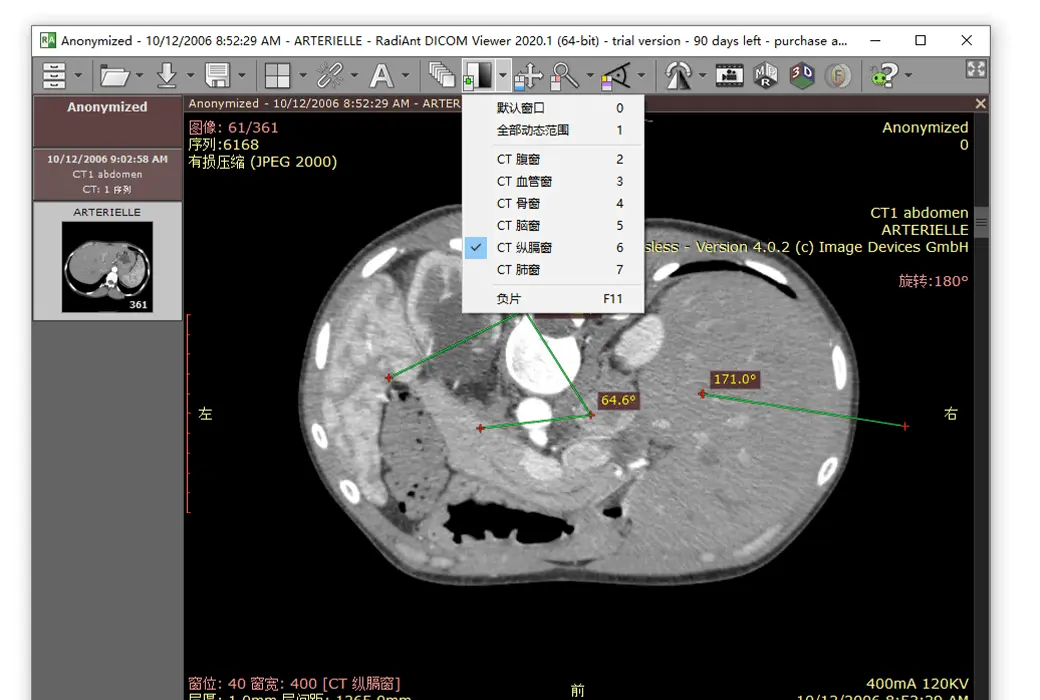
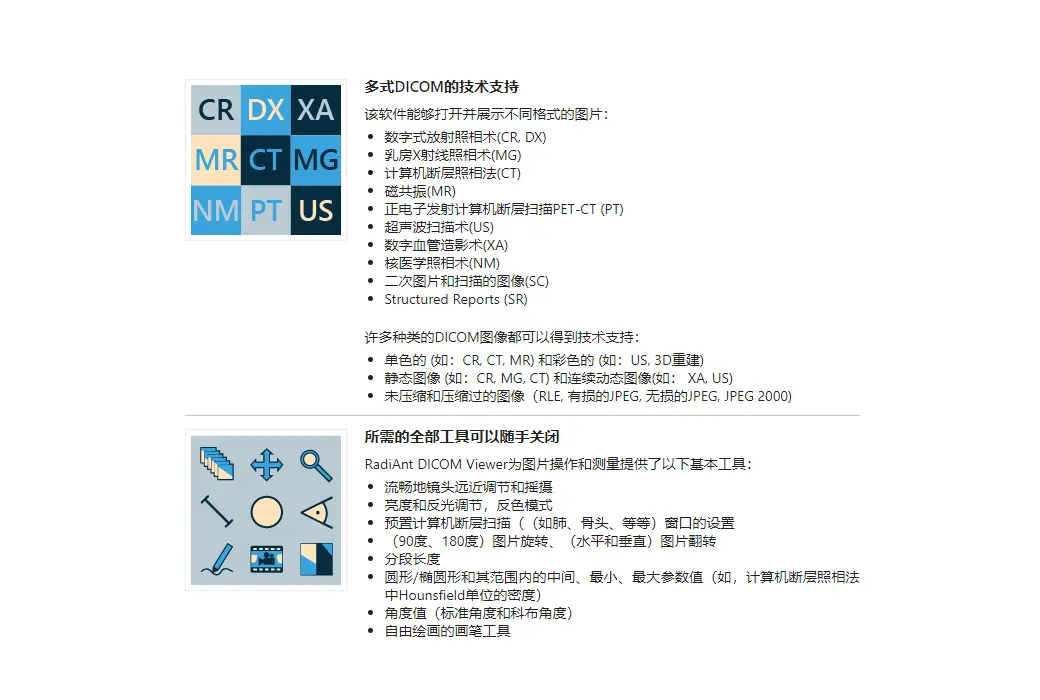
Designed to give you a unique experience, it boasts an intuitive interface and unparalleled performance, ensuring your experience is overwhelmingly positive!
Patient's CD/DVD DICOM Browser
Do you know how frustrating it can be to endlessly wait for a patient's CD to open?
Does your browser require you to install additional programs before you can actually view the images?
Try RadiAnt DICOM Viewer AutoPlay Pack! It's absolutely fast, and there's no need to install CD/DVD playback software on Windows XP SP3, Vista, Windows 7, Windows 8, Windows 8.1, and Windows 10, nor is there a need to install any other software or programs (such as .NET or Java).
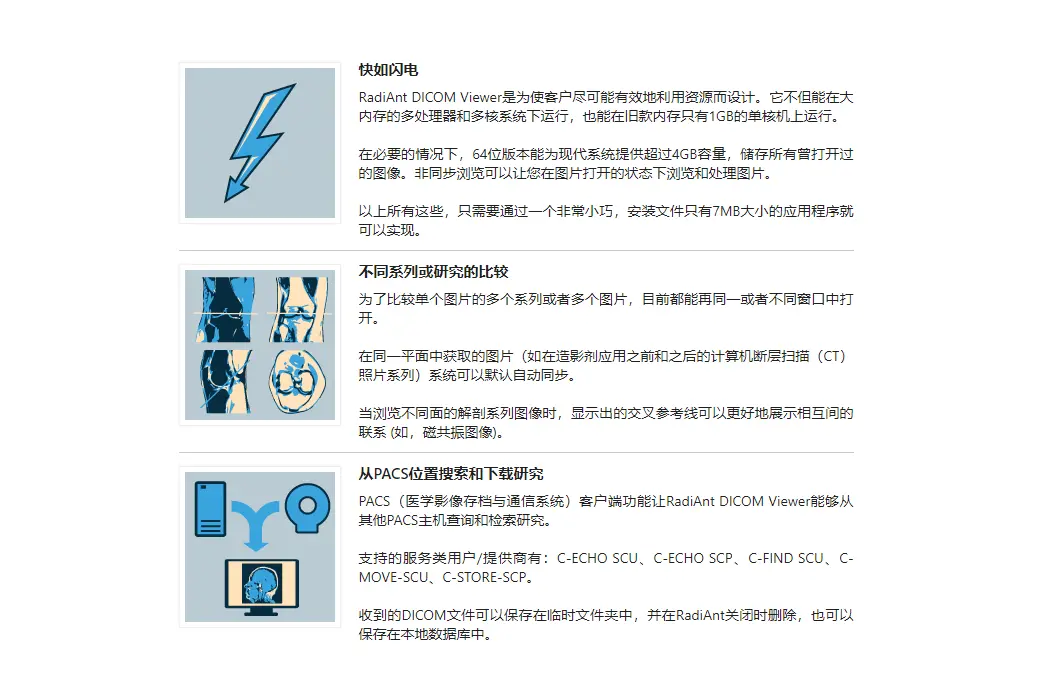
If your operating system allows, the 64-bit version opens files more efficiently. Older machines use the 32-bit version. This version adds approximately just 6MB of data.
After opening the program, the logo will appear, which is fully customizable and can be used in your company's information for guests.
.Official website:https://www.radiantviewer.com/
Download Center:https://radiant-dicom-viewer.apsgo.cn
Backup Download:N/A
Delivery time:Manual online processing of orders
Operating platform:Windows
Interface language:Supports Chinese interface display, with multiple languages available.
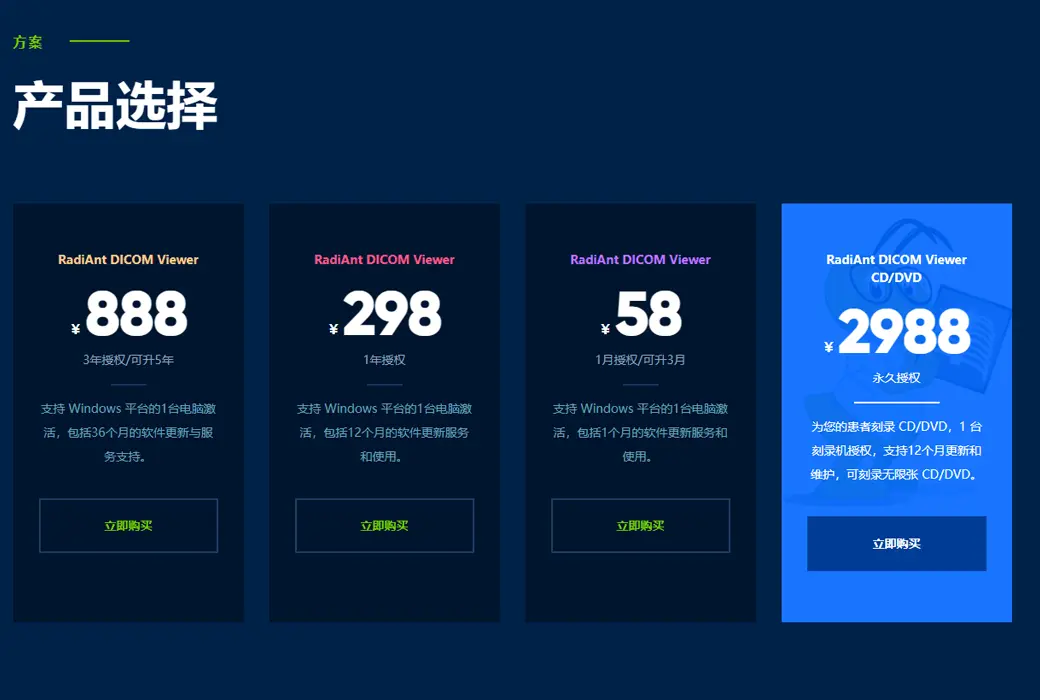
Update instructions:Lifetime version: includes 1 year of upgrade, maintenance, and update services. After 1 year, only the current version can be used. 1-year subscription: Used and updated within 1 year.
Pre purchase trial:90 day free trial.
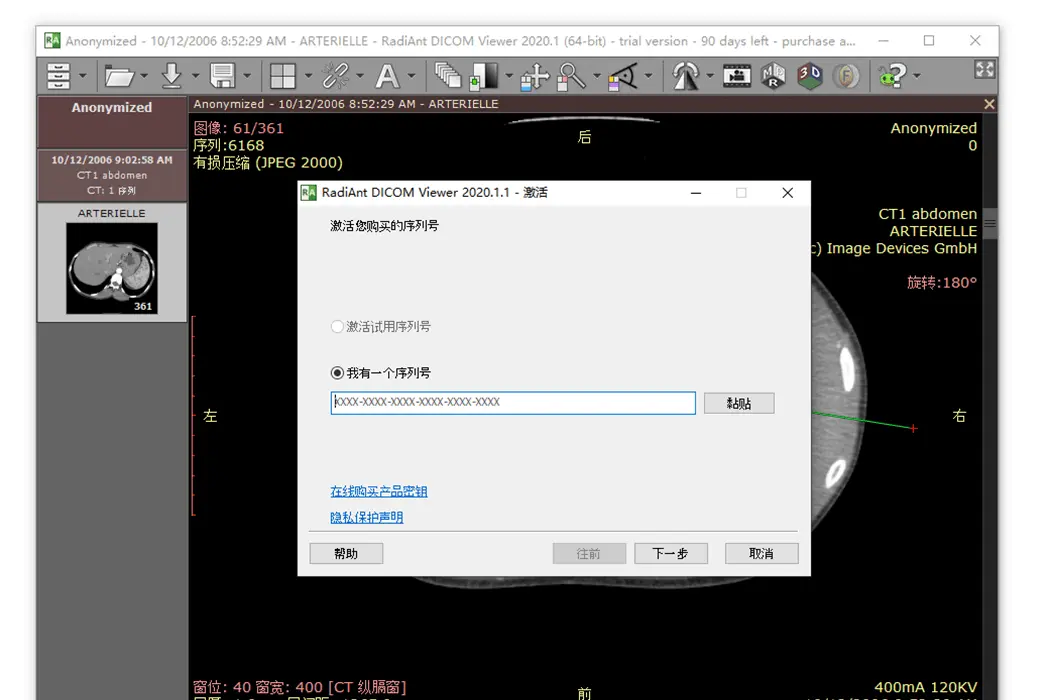
How to receive the goods:After purchase, the activation information will be sent to the email address at the time of placing the order, and the corresponding product activation code can be viewed in the personal center, My Orders.
Number of devices:Can install 1 computer.
Replacing the computer:Uninstall and remove authorization from the original computer, and reactivate the new computer with a registration code.
Activation guidance:To be added.
Special instructions:CD/DVD version: You cannot use this license to view images yourself. This license is for patients to use on a DVD, making it convenient for them to view their own images without purchasing a license.
reference material:https://www.radiantviewer.com/products/

Any question

Options.xml
Options.xml The file can be used to set default preferences for RadiAnt DICOM Viewer.
This file is located at“C:\ProgramData\RadiantViewerIn the folder.
When RadiAnt DICOM Viewer is used as a patient CD/DVD viewer, the options.xml file can also be placed in the "COMMON" folder of the CD/DVD media.
The default options.xml file content is as follows:
<?xml version="1.0" encoding="utf-8" ?>
<options>
<zoom>
<toregion> 0</toregion> <! --Zoom to Region Mode (0- Disabled, 1- Enabled) -->;
<offcenter> 0</offcenter> <! --When zooming in, the image area pointed by the mouse pointer remains on the screen (0- disabled, 1- enabled) -->;
</zoom>
<browse>
<scrollwrap> 1</scrollwrap> <! --Endless scrolling (0- disabled, 1- enabled) -->;
</browse>
<window>
<dirs> 0</dirs> <! --Flag for changing direction when adjusting window width/level using the mouse (0-7) (1- Switch window width/level, 2- Vertical reversal, 4- Horizontal reversal) -->;
<presets> <! --Window Settings - Presets -->;
<! -- <i m="CT" i="8" n="Preset 1" ww="70" wl="30"/> --> <! --M - modality (CR, CT, MR, XA, MG, etc.), i - shortcut keys (2-9), n - preset name, ww - window width, wl - window level -->;
<!-- <i m="CT" i="9" n="Preset 2" ww="32" wl="30"/> -->
</presets>
</window>
<synchronization>
<enabled> 1</enabled> <! --Automatic synchronization (0-disable, 1-enable) -->;
<slice> 1</slice> <! --Synchronize slice position (0- disable, 1- enable) -->;
<zoom> 1</zoom> <! --Synchronize zoom and pan (0- disable, 1- enable) -->;
<window> 0</window> <! --Synchronization window settings (0- disable, 1- enable) -->;
</synchronization>
<updates>
<notify> 1</notify> <! --Notify of new updates (0- disable, 1- enable) -->;
</updates>
<tools> <! --Tools assigned to mouse buttons (1- Browse Sequence, 2- Zoom, 3- Pan, 4- Change Window Width/Level, 5- ROI) -->;
<lmb> 1</lmb> <! --Left mouse button -->;
<mmb> 4</mmb> <! --Middle mouse button -->;
<rmb> 2</rmb> <! --Right mouse button -->;
<x1mb> 3</x1mb> <! --Back mouse button -->;
<x2mb> 5</x2mb> <! --Mouse forward button -->;
<mw> 1</mw> <! --Mouse Wheel (Vertical) - Effective Tools: Browse Sequence (1) or Zoom (2) -->;
<mwh> 1</mwh> <! --Mouse scroll wheel (horizontal) - disable (0), change sequence (1) -->;
</tools>
<vr>
<penscalpel> 0</penscalpel> <! --Associate surgical knife tool with pen (0- disable, 1- enable) -->;
</vr>
<mpr>
<autocenter> 1</autocenter> <! --Automatically center axis in view (0- disabled, 1- enabled) -->;
<axisthkpts> 0</axisthkpts> <! --Display thickness adjustment points on the axis (0- disabled, 1- enabled) -->;
</mpr>
<cine>
<autorun> 1</autorun> <! --For XA and US sequences, automatically activate movie mode -->;
<fps> 10</fps> <! --For sequences without predefined FPS, default frame rate -->;
</cine>
<loading>
<autoshow> 1</autoshow> <! --Mode for displaying the first image (0- The user needs to click on the sequence to display it, 1- Display the scanned first image file, 2- After scanning all files, display the first sequence in the preview bar) -->;
<ussep> 0</ussep> <! --Display separate thumbnails for single frame ultrasound images belonging to the same DICOM sequence (0-disable, 1-enable) -->;
<desc> 0</desc> <! --Research sorting mode (0- ascending by date, 1- descending by date) -->;
<primaryfirst> 0</primaryfirst> <! --Add PRIMARY image as a separate sequence before DERIVED (0- disable, 1- enable) -->;
<nonimage> 0</nonimage> <! --Loading non image DICOM files: PR, KO, etc. (0-disable, 1-enable) -->;
<acceptpushed> 0</acceptpushed> <! --Receive and display studies pushed from PACS locations (0-disabled, 1-enabled) -->;
<sernum> 0</sernum> <! --Display serial number on thumbnail image (0- disabled, 1- enabled) -->;
</loading>
<disabled>
<! --Disabled features and toolbar buttons -->;
<!-- <folders/> -->
<!-- <cddvd/> -->
<!-- <pacs/> -->
<!-- <export/> -->
<!-- <db/> -->
</disabled>
<screen>
<split c="0" r="0"/> <! --Default split screen setting: c - number of columns, r - number of rows -->;
<clp> 0</clp> <! --Behavior of closing panel button (0- close panel, 1- clear panel) -->;
<! --Default viewer window position (w - width, h - height, l - x-coordinate of upper left corner, t - y-coordinate of upper left corner, m - window status: 0- normal, 1- max, f - full screen: 0- disabled, 1- enabled) -->;
<!--
<windows>
<viewer w="800" h="600" l="0" t="0" m="0" f="0"/>
</windows>
-->
</screen>
<i18n>
<! -- <fiso> ISO_IR 192< /fiso> --> <! --Define a specific character set that covers the values defined by the (00080005) SpecificCharacterSet tag in all DICOM files -->;
<! -- <srfiso> ISO_IR 192< /srfiso> --> <! --Define a specific character set that covers the values defined by the (00080005) SpecificCharacterSet tag in the structured report (SR document) -->;
</i18n>
<pacs>
<! --Define additional PACS search fields -->;
<srcfields>
<! -- <i id="00081070" n="Operators' name" h="Enter operators' name..." la="1" ta="1"/> --> <! --ID - DICOM tag ID, n - name, h - prompt, la - add leading star, ta - add trailing star -->;
</srcfields>
</pacs>
<roi>
<length>
<units> 0</units> <! --Measurement units (0-automatic unit, 1-mm, 2-cm, 3-m, 4-um, 5-nm) -->;
<precision> 2</precision> <! --Number of decimal places displayed -->;
<divide> 0</divide> <! --1- Draw a marker in the middle of the line segment -->;
</length>
<ellipse>
<center> 0</center> <! --1- Draw a mark at the center of the ellipse -->;
</ellipse>
</roi>
<srdocs>
<imgheader> 0</imgheader> <! --1- Display an image in the title of a structured report HTML document (image path: PROFIMDATA \ RadiAntViewer \ srogo. png) -->;
</srdocs>
<db>
<showonstart> 0</showonstart> <! --After the program starts, it displays: 0- Blank viewer window, 1- Database window -->;
<autoviewer> 0</autoviewer> <! --Automatically display imported files in the viewer: 0- none, 1- CD/DVD disc -->;
<autoeject> 0</autoeject> <! --1- Automatically eject CD/DVD disc after import completion -->;
</db>
<api>
<! -- <url1> https://10.10.10.1/api/radiant/< ;/url1> --> <! --When the custom shortcut ApiLaunchURL1 is pressed, send the SOP instance UID to the specified URL -->;
</api>
</options>
🔗 Source text link:https://www.radiantviewer.com/dicom-viewer-manual/options_xml.html