You haven't signed in yet, you can have a better experience after signing in
*Please complete the payment within {{receiveCouponInfo.expire_at}}Previous use*
You haven't signed in yet, you can have a better experience after signing in




Activity Rules
1、Activity time:{{ info.groupon.start_at }} ~ {{ info.groupon.end_at }}。
1、Activity time:cease when sold out。
2、Validity period of the Group Buying:{{ info.groupon.expire_days * 24 }} hours。
3、Number of Group Buying:{{ info.groupon.need_count }}x。
Please Pay Attention
1、Teamwork process: Join/initiate a Group Buying and make a successful payment - Within the validity period, the number of team members meets the activity requirements - Group Buying succeeded!
2、If the number of participants cannot be met within the valid period, the group will fail, and the paid amount will be refunded in the original way.
3、The number of people required and the time of the event may vary among different products. Please pay attention to the rules of the event.

Flexible, Simple, Fast
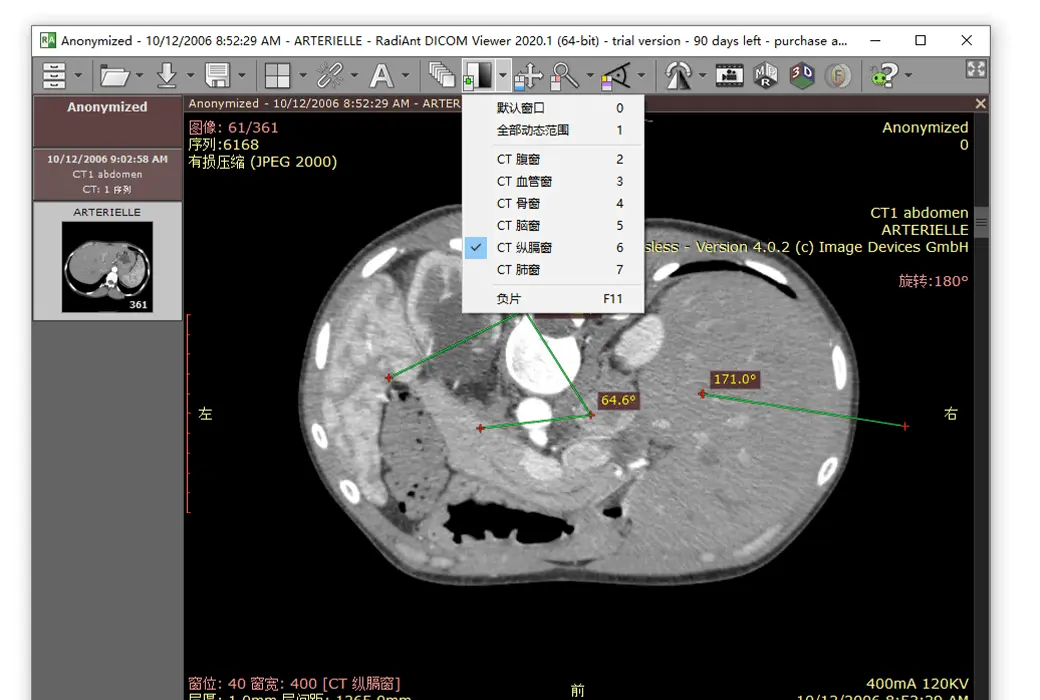
Designed to give you a unique experience, it boasts an intuitive interface and unparalleled performance, ensuring your experience is overwhelmingly positive!
Patient's CD/DVD DICOM Browser
Do you know how frustrating it can be to endlessly wait for a patient's CD to open?
Does your browser require you to install additional programs before you can actually view the images?
Try RadiAnt DICOM Viewer AutoPlay Pack! It's absolutely fast, and there's no need to install CD/DVD playback software on Windows XP SP3, Vista, Windows 7, Windows 8, Windows 8.1, and Windows 10, nor is there a need to install any other software or programs (such as .NET or Java).
If your operating system allows, the 64-bit version opens files more efficiently. Older machines use the 32-bit version. This version adds approximately just 6MB of data.
After opening the program, the logo will appear, which is fully customizable and can be used in your company's information for guests.
.Official website:https://www.radiantviewer.com/
Download Center:https://radiant-dicom-viewer.apsgo.cn
Backup Download:N/A
Delivery time:Manual online processing of orders
Operating platform:Windows
Interface language:Supports Chinese interface display, with multiple languages available.
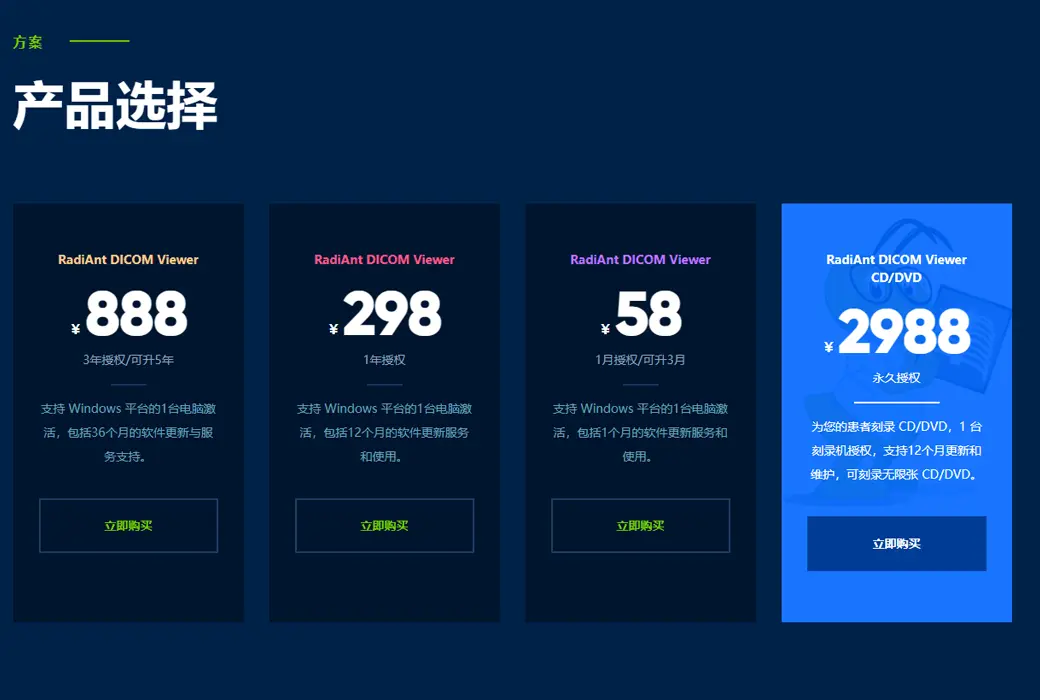
Update instructions:Lifetime version: includes 1 year of upgrade, maintenance, and update services. After 1 year, only the current version can be used. 1-year subscription: Used and updated within 1 year.
Pre purchase trial:90 day free trial.
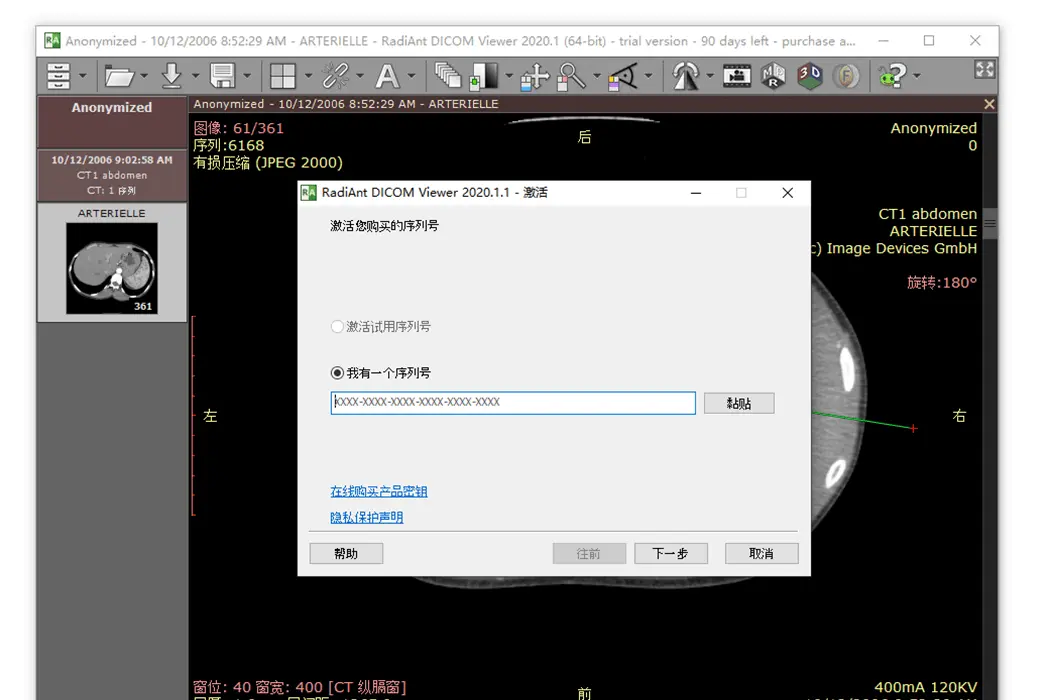
How to receive the goods:After purchase, the activation information will be sent to the email address at the time of placing the order, and the corresponding product activation code can be viewed in the personal center, My Orders.
Number of devices:Can install 1 computer.
Replacing the computer:Uninstall and remove authorization from the original computer, and reactivate the new computer with a registration code.
Activation guidance:To be added.
Special instructions:CD/DVD version: You cannot use this license to view images yourself. This license is for patients to use on a DVD, making it convenient for them to view their own images without purchasing a license.
reference material:https://www.radiantviewer.com/products/

Any question

radiantviewer.exe
-f
Open DICOM file(radiantviewer.exe -f “file1” “file2” “file3”)
-fl
Open the DICOM files listed in the text file, with one file path per line(radiantviewer.exe -fl “filelist.txt”)
-d
Open DICOM files in the folder(radiantviewer.exe -d “folder1” “folder2” “folder3”)
When used with CD/DVD auto run versions, this parameter only defines the specific folders to be scanned on CD/DVD media.
-b
Display expanded subfolders tree after launching RadiAnt DICOM viewer(radiantviewer.exe -b “rootfolder”)
-cl
Close all other open windows in RadiAnt DICOM viewer(radiantviewer.exe -cl)
-pstv
Start downloading research that matches specific DICOM tags/values(Radiantviewer. exe - pstv 00080050 "ACCESSION-NUMBER" or Radiantviewer. exe - pstv 0020000D "STUDUID")
-paet
Start downloading research from a specific PACS host and match it with AE titles(radiantviewer.exe -paet MYPACSAETITLE -pstv 00100020 “PATIENTID”)
-wp
Set the position and size of the main window(radiantviewer.exe -wp X Y W H F)
X. Y - Position, W, H - Size, F - Flag (1- W&H specifies client area size, 2- Display viewer in full screen mode)
-sp
Set default split screen preset(radiantviewer.exe -sp colnum rownum)
-sf
Hide specific interface elements(radiantviewer.exe -sf F)
F - Flag (hidetoybar=0x0001, hideseiesbar=0x0002, hidestasibar=0x0004)
-tg
Export DICOM metadata to a text file(radiantviewer.exe -d “folder_in” -tg “folder_out”)
FILENAME
Open DICOM file(radiantviewer.exe “file1”)
FOLDERNAME
Open DICOM folder(radiantviewer.exe “folder1”)
ZIPARCHIVE.zip
Open DICOM compressed file(radiantviewer.exe “samplearchive.zip”)
DATABASE.rdvdb
Open the RadiAnt database (radiantviewer. exe "mycases. rdvdb")
radcmd.exe
-activateonline
Automatically activate RadiAnt DICOM viewer using serial number(radcmd.exe -activateonline SERIALNUMBER)
-reqcode
Obtain the request code required for manual activation(radcmd.exe -reqcode)
-activate
Activate RadiAnt DICOM viewer using code generated by manually activating the service(radcmd.exe -activate ACTIVATION_CODE)
-deactivate
Cancel the installation of RadiAnt DICOM viewer and obtain the code required to manually log out of the service(radcmd.exe -deactivate)
🔗 Source text link:https://www.radiantviewer.com/dicom-viewer-manual/command-line_arguments.html