You haven't signed in yet, you can have a better experience after signing in
*Please complete the payment within {{receiveCouponInfo.expire_at}}Previous use*
You haven't signed in yet, you can have a better experience after signing in



Activity Rules
1、Activity time:{{ info.groupon.start_at }} ~ {{ info.groupon.end_at }}。
1、Activity time:cease when sold out。
2、Validity period of the Group Buying:{{ info.groupon.expire_days * 24 }} hours。
3、Number of Group Buying:{{ info.groupon.need_count }}x。
Please Pay Attention
1、Teamwork process: Join/initiate a Group Buying and make a successful payment - Within the validity period, the number of team members meets the activity requirements - Group Buying succeeded!
2、If the number of participants cannot be met within the valid period, the group will fail, and the paid amount will be refunded in the original way.
3、The number of people required and the time of the event may vary among different products. Please pay attention to the rules of the event.

Flexible, Simple, Fast
Designed to give you a unique experience, it boasts an intuitive interface and unparalleled performance, ensuring your experience is overwhelmingly positive!
Patient's CD/DVD DICOM Browser
Do you know how frustrating it can be to endlessly wait for a patient's CD to open?
Does your browser require you to install additional programs before you can actually view the images?
Try RadiAnt DICOM Viewer AutoPlay Pack! It's absolutely fast, and there's no need to install CD/DVD playback software on Windows XP SP3, Vista, Windows 7, Windows 8, Windows 8.1, and Windows 10, nor is there a need to install any other software or programs (such as .NET or Java).
If your operating system allows, the 64-bit version opens files more efficiently. Older machines use the 32-bit version. This version adds approximately just 6MB of data.
After opening the program, the logo will appear, which is fully customizable and can be used in your company's information for guests.
.Official website:https://www.radiantviewer.com/
Download Center:https://radiant-dicom-viewer.apsgo.cn
Backup Download:N/A
Delivery time:Manual online processing of orders
Operating platform:Windows
Interface language:Supports Chinese interface display, with multiple languages available.
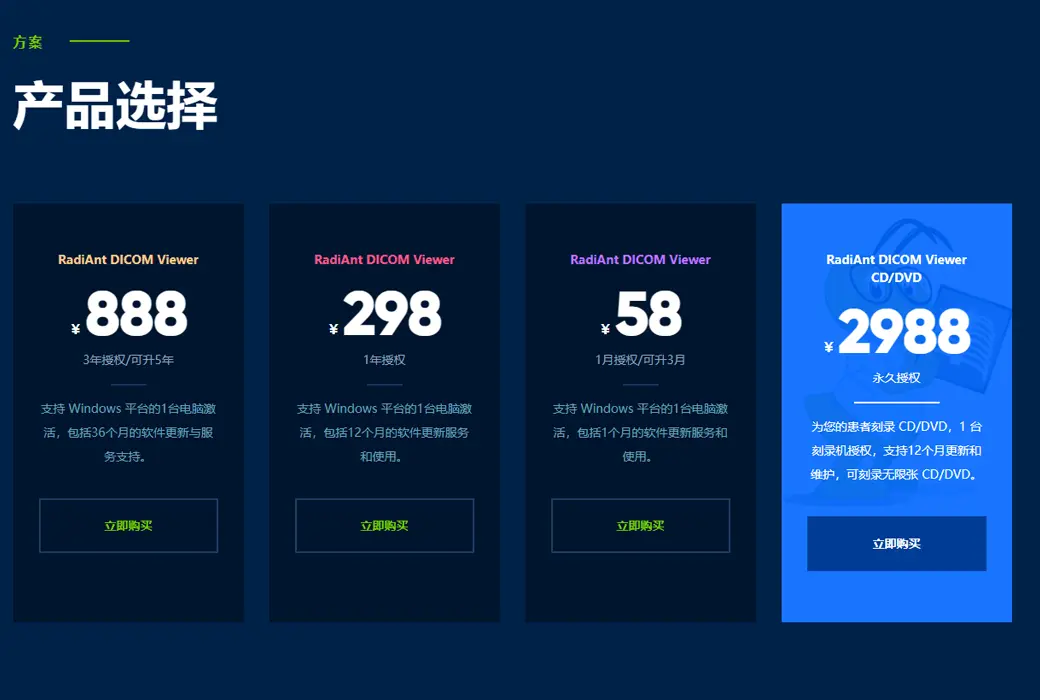
Update instructions:Lifetime version: includes 1 year of upgrade, maintenance, and update services. After 1 year, only the current version can be used. 1-year subscription: Used and updated within 1 year.
Pre purchase trial:90 day free trial.
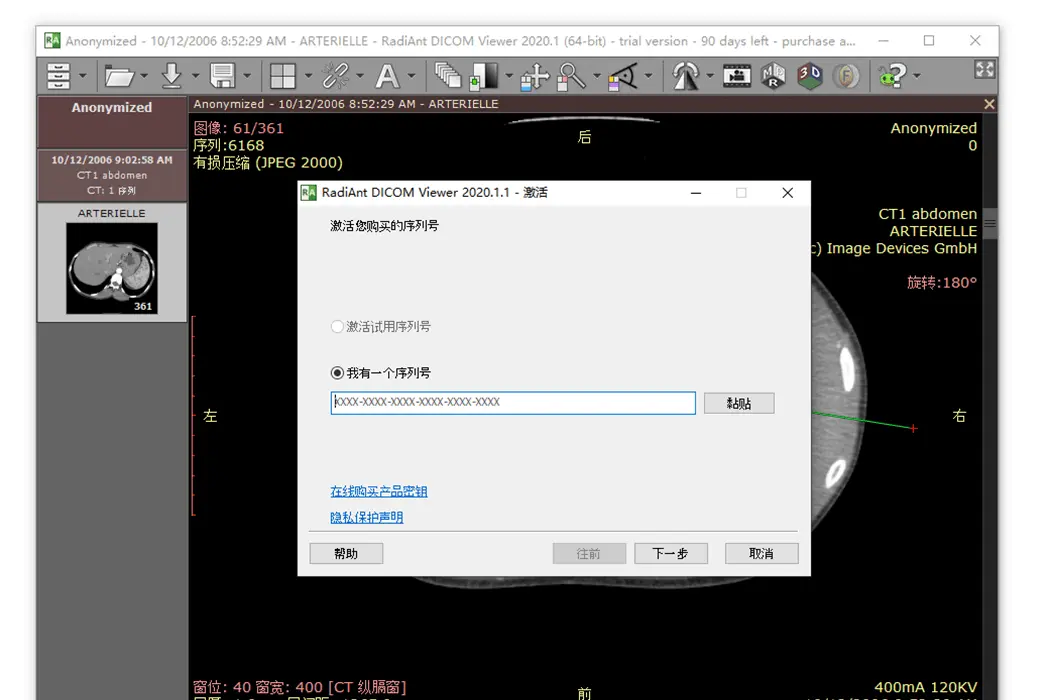
How to receive the goods:After purchase, the activation information will be sent to the email address at the time of placing the order, and the corresponding product activation code can be viewed in the personal center, My Orders.
Number of devices:Can install 1 computer.
Replacing the computer:Uninstall and remove authorization from the original computer, and reactivate the new computer with a registration code.
Activation guidance:To be added.
Special instructions:CD/DVD version: You cannot use this license to view images yourself. This license is for patients to use on a DVD, making it convenient for them to view their own images without purchasing a license.
reference material:https://www.radiantviewer.com/products/

Any question

Basic Settings;
Open the PACS search and download window:

If this is your first time performing this task, the system will require you to configure PACS settings:
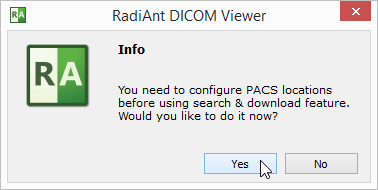
If the configuration has been executed, you must click on the option icon Or use shortcut keys Ctrl + O Change PACS settings.
Each networked DICOM application has three basic parameters: IP address, port, and AE (Application Entity) title. The IP address is configured through system network settings. The port and AE header for listening to PACS connections in RadiAnt are configured in RadiAnt. By default, the port is set to 11112 and the AE title is set to RADIONT.
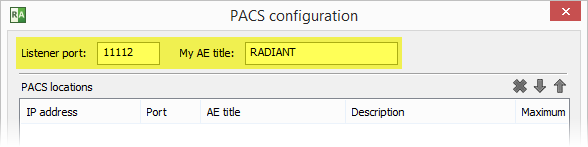
Please remember to configure the PACS server using the IP, port, and AE title of RadiAnt DICOM Viewer. Otherwise, you will not be able to search and download research to RadiAnt from this server.
Add PACS host
To add a new PACS location, the AE parameters of the server (IP, port, and title) are required. Enter them in the fields below, add a description, and then press Enter Or click Add .
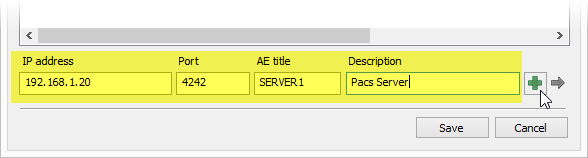
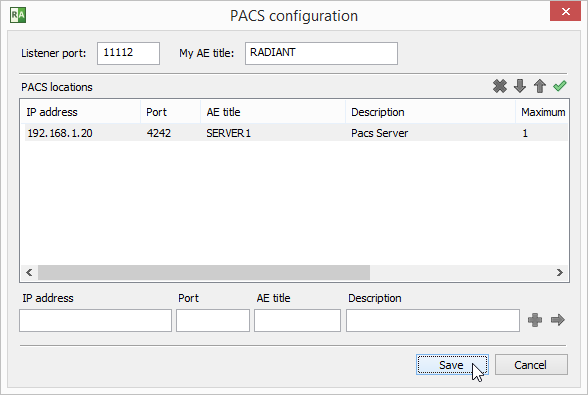
Click Save Afterwards, you can perform the first search and download.
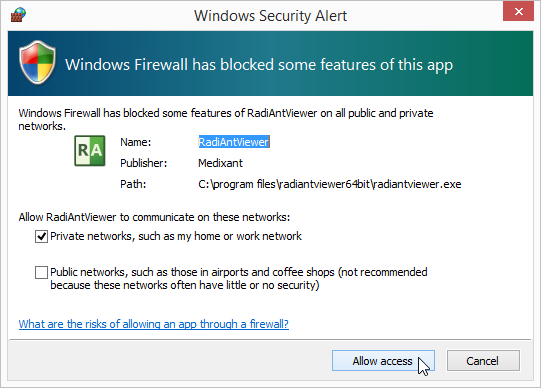
If this is your first time configuring and enabling Windows Firewall, the system will ask you to unblock RadiAnt's network communication. Click Allow access ; Otherwise, you will not be able to download DICOM studies from the PACS location.
Verify PACS Host (C-ECHO);
After adding the new PACS location to the list, the C-ECHO DICOM service can be used to verify the correct configuration and network connection.
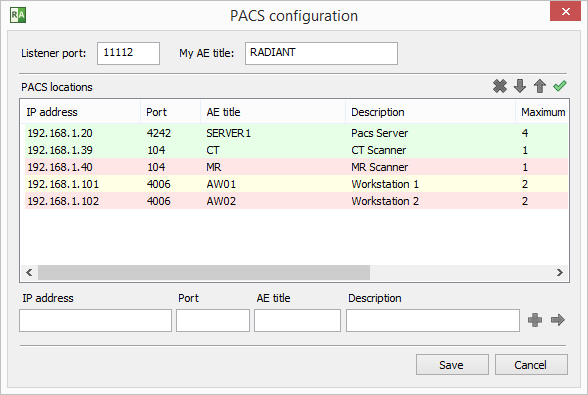
Click on this Button or press;F2 The key can perform DICOM ping (C-ECHO) on all hosts in the list.
The location waiting for verification will be displayed with a yellow background.
After verification, the background of the host turns green.
If a connection and association cannot be established with the host, the background will turn red.
Modify PACS host
To change certain parameters of PACS location, select it in the list, change the required fields, and then press Enter Or click on the arrow icon  .
When you configure multiple PACS locations, you can select them and click up And down
 Arrow (or use shortcut keys); Ctrl + Up Or Ctrl+Down) to change their priority in the search.
If multiple locations are searched simultaneously and the results of a study with the same research UID are provided, the location with higher priority will be used to download the study.
To delete the selected location, click the button Or press Ctrl + Del .
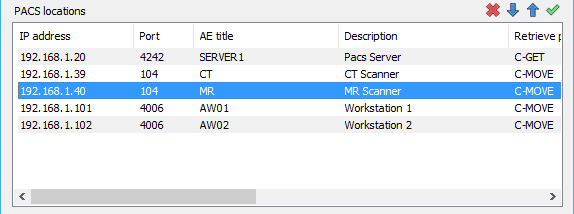
Advanced Settings
Right click on the selected PACS location to display a pop-up menu.
Choose Retrieve protocolCan switch between C-MOVE and C-GET protocols to retrieve research from PACS locations.
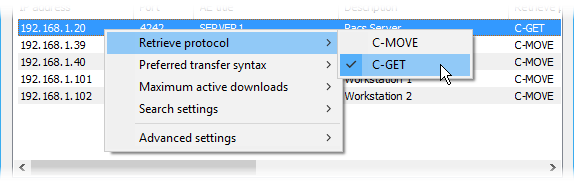
By default, the C-MOVE protocol is used. It requires:
And using the C-GET protocol:
Due to the above advantages, the C-GET protocol can be suitable for use outside of firewalls or NAT; However, unfortunately, it is usually not implemented in PACS servers.
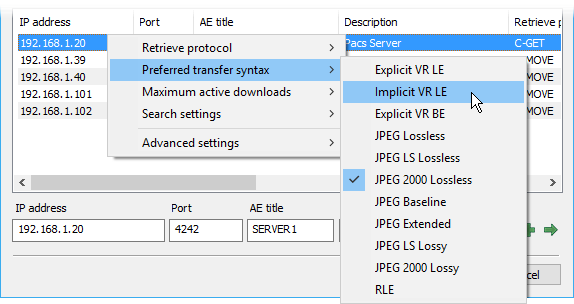
Choose Preferred transfer syntaxTo change the encoding used when communicating with the PACS host. By default, the Explicit VR Little Endian transmission syntax is used. However, if you encounter some communication issues, you can try other encodings.
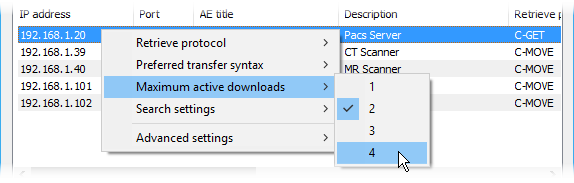
The; Maximum active downloads The option allows you to set concurrent download restrictions from a PACS host. The default value is 1. Usually, when set to a larger value, it will accelerate the transmission speed of multiple studies. However, changing this value may also result in connection timeouts and errors, depending on the specific PACS server implementation.
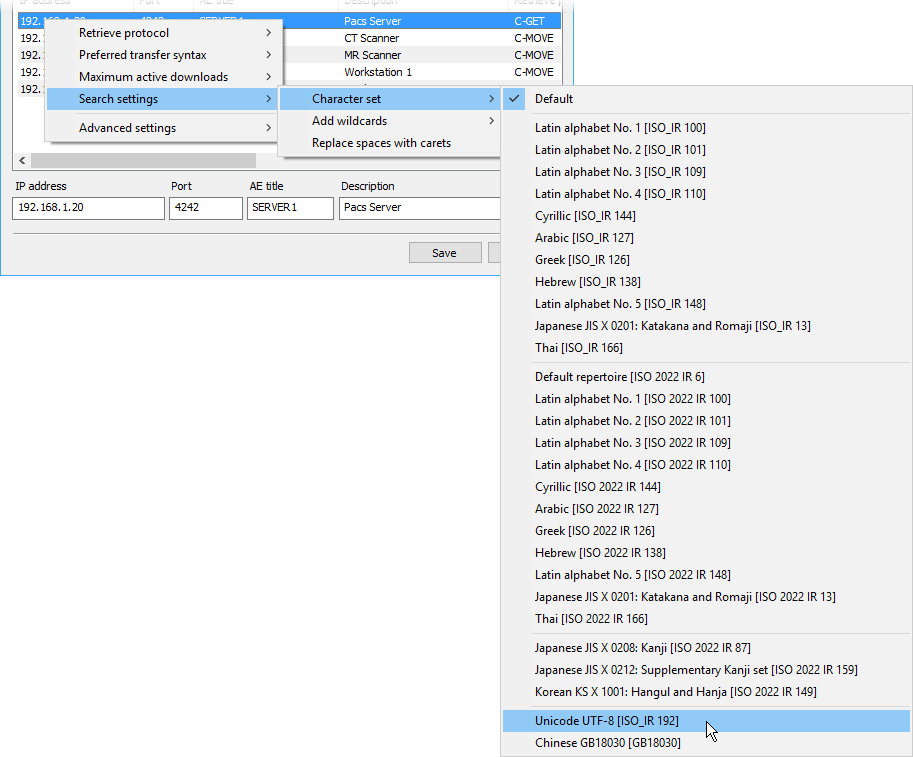
Choose Search settings > Search settings for the Character set to select the character encoding used in PACS search queries. By default, searches are performed using the standard ASCII character set. This option allows you to search for names using non English characters (please note that your PACS server must also support the selected character set).
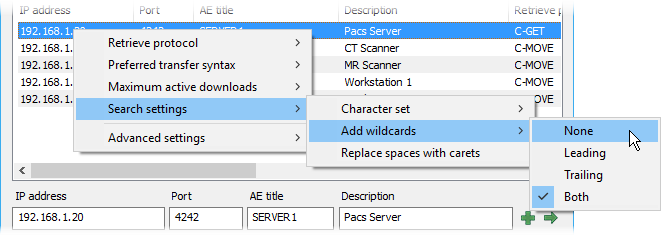
When searching for studies at PACS locations, leading and trailing wildcard characters (*) will be automatically added to your query. This means that you only need to type a part of the name to view all the results that contain the text you entered. Can be used;Search settings > Add wildcards Options to change this behavior.
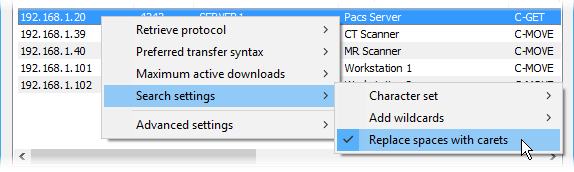
Choose Search settings > Replace spaces with carets Replace spaces with insertion symbols (^) in PACS queries. By default, this option is disabled.
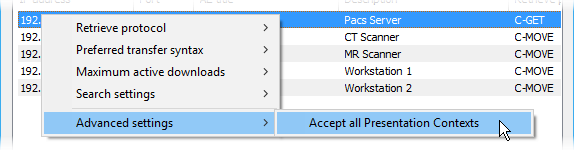
Choose Advanced settings > Accept all Presentation Contexts To disable rejecting unsupported abstract syntax during association negotiation. RadiAnt DICOM Viewer may require this option to be used with certain specific PACS server implementations. By default, it is disabled.
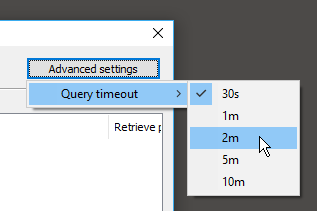
single click Advanced settings Button and select Query timeout Change the maximum waiting time for data transmission after PACS download starts. Some PACS servers may take longer to retrieve research from the cold storage and start sending.